
Unity provides 2 tools that use generative AI and help developers implement their solution.
These tools are as follows:
- The Assistant, which is an LLM model specialized in Unity and answers any question related to the project.
- The Generator, which is used to generate various assets: 3D objects, sprites, textures, materials, animations, sounds, and cubemaps.
Using generative AI in Unity
Since the feature is still currently in beta, you must first sign up for it because it is not enabled automatically. This can be done from this web page.
Everything else happens in the Unity editor. Unity uses a points system to prevent abuse.
The points assigned to an account are reset every week. If points are needed immediately, it is possible to fill out an online form to obtain a reserve of points without having to wait for the weekly automatic reload.
The point cost of using AI varies depending on the request. This system is expected to change when the beta is released.
Note : these features are only available starting from Unity version 6.3.
It is also worth noting that a Unity project wishing to use these features must be created on Unity Cloud, not on a local machine.
Assistant
The assistant appears as a chat window in which the user enters text in natural language (prompt). It acts as a guide and answers the developer’s questions.
Two modes are available for this assistant : Ask mode and Agent mode.
Ask Mode
Ask mode is primarily intended to answer questions and guide the user. It is based on GPT and Llama models.
It provides help without making any changes to the project. It has access to Unity tools, but only in read-only mode.
This mode is better suited for learning, planning, or reviewing. Example : "What would be a good intensity value for the lighting in this scene ?". The assistant will then read the content of the currently open scene and make suggestions without making any changes itself.
Agent Mode
Agent mode, on the other hand, performs actions. It can create, modify, or delete objects or assets by using Unity tools. It asks for the user’s approval before making a change. This mode is better suited for automation or setup tasks. Example : "Fix the scene lighting intensity". The agent will read the data from the currently open scene, then correct the lighting through tools and with the developer’s permission.
Despite its access to tools, the agent’s responses will be textual, just like in Ask mode.
During a discussion with the assistant, it is also possible to attach useful project elements to provide context in a simple, effective, and fast way. It is also possible to attach images, or even error logs from the Unity console.
Example prompts
- Attach an animation asset and prompt "How can I slow down the speed of this animation ?".
- "Set the intensity of all lights tagged "Fog Light" to 100% and change the color temperature to 3500K".
- "Explain this error in the console".
- "I would like to create a spark effect using VFX Graph, can you guide me through the steps to follow ?".
- Attach a group of 3D objects and prompt "Can you create a scene for me with natural outdoor lighting and distribute the attached objects evenly to create a forest ? You also need to create a flat ground that covers the whole area".
- "Create a C# script for me that makes the light the script is attached to flicker every 2 seconds".
Generator
As its name suggests, the generator uses a series of tools to create assets based on a prompt. These tools can create, modify, or optimize different assets in the project.
It is possible to generate :
- Sprites
- Textures
- Cubemaps
- Sounds
- Animations
- Materials
- Terrains
- 3D objects
Each asset type to be generated has a dedicated window, allowing as much information and context as possible to be provided in order to obtain the desired result.
Sprites
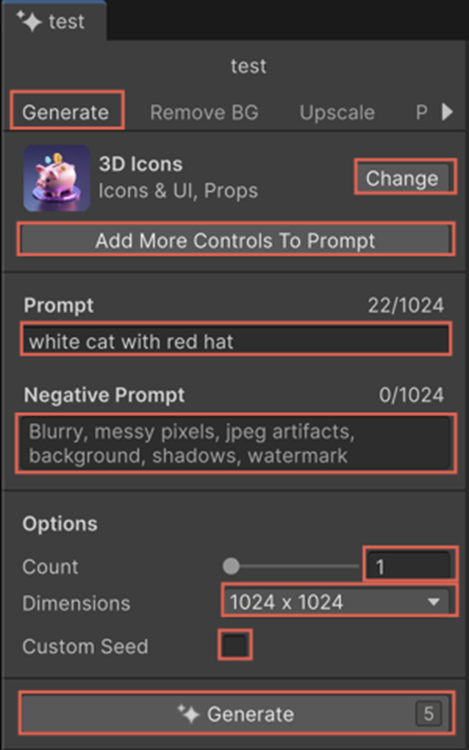
The "Change" button lets you choose the desired generation model. Some models are better suited to the style or type of result you want.
The "Add More Controls To Prompt” button allows you to add different reference images, for example a style or composition reference. More info here.
The "Prompt" field is used to describe the desired sprite, while the "Negative Prompt" field is used to describe what should be excluded from the result (example : watermark or background). More info about negative prompts here.
You can also define the number of sprites to generate, as well as their dimensions.
The "Custom Seed" field is optional and makes it possible to keep results consistent. More info here.
The number on the right side of the "Generate" button indicates the number of credits that will be consumed during generation.
It is also possible to generate a spritesheet from a sprite.
Note: texture and cubemap generation work in a similar way.
Sounds
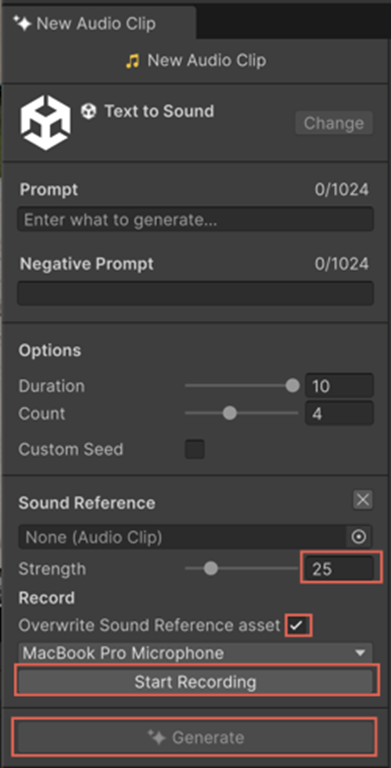
It is possible to generate sounds (in .wav format) in 3 different ways :
- Via a prompt : In addition to the fields found in other generation tools, it is also possible to choose the duration of the generated sound.
- Via a reference sound : a "Select Audio Clip" field is added, allowing you to choose the reference sound used for generation. A "Strength" field is also present and makes it possible to define whether the generated sound should be more or less similar to the reference sound. It is also possible to have the generated sound overwrite the reference sound.
- Via directly recorded sound : A "Start Recording" button allows you to directly record sound from the microphone, which will be used as a reference. Note: Unity will need permission to access the microphone input.
- Via a reference sound : a "Select Audio Clip" field is added, allowing you to choose the reference sound used for generation. A "Strength" field is also present and makes it possible to define whether the generated sound should be more or less similar to the reference sound. It is also possible to have the generated sound overwrite the reference sound.
Animations
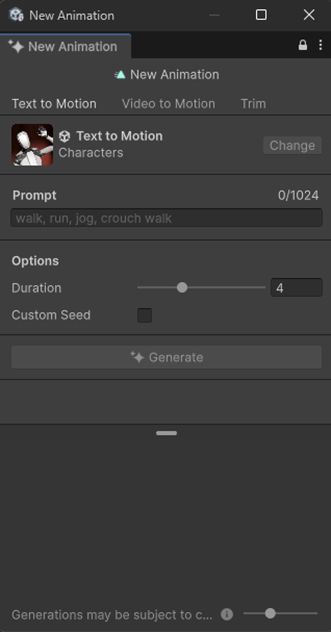
There are 2 animation generation methods :
- Text to Motion : Creates an animation from a prompt. It is then possible to choose the duration of the animation.
- Video to Motion : Creates an animation from a reference animation that must be uploaded.
The "Trim" tab lets you refine the generated animation, particularly to ensure that it loops without any obvious issues.
Materials
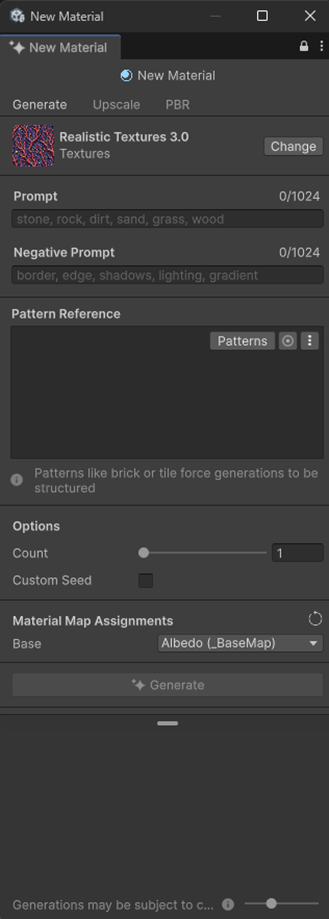
Material generation is done through a prompt, in a way broadly similar to image generation.
The “Pattern Reference” field makes it possible to force the generated visual to follow a repeating pattern, for example bricks, tiling, waves, etc., via a pattern reference image. It is possible to import your own image or choose one from a stock image library.
The “Material Map Assignments” field is used to define the role of the generated image : albedo, metallic, normal map, etc.
The “Upscale” tab allows you to refine and increase the resolution of the generated image if needed.
The “PBR” (physically based rendering) tab simulates the way light interacts with the material. It makes it possible to obtain realistic effects such as water reflections, shininess, metallic reflections, etc.
The “Material Map Assignments” section allows you to specify the different components of the material. More info here.
It is possible to create terrain in the same way.
3D Objects
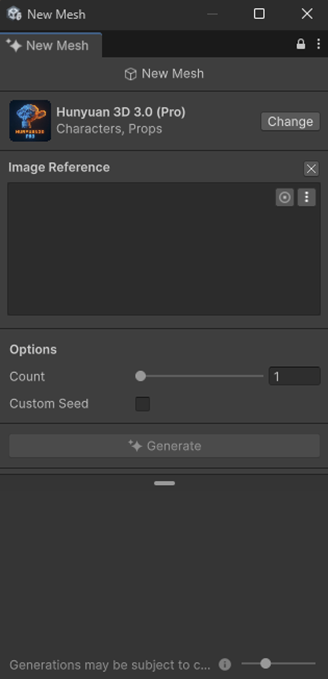
Unity generates a 3D object from a reference image.
It is better suited to simple objects, such as small decorative items or environmental details.
The objects generated by Unity can be viewed from all angles, do not contain sub-objects or removable elements, and are neither rigged nor animated.
It is also possible to generate a 3D object via prompt by using the assistant.
Generative AI embedded in Unity thanks to Sentis
Sentis, previously called Barracuda, is Unity’s neural network inference (execution) library.
It is used to import a model that has already been trained outside Unity (in .onnx format) into Unity, and to run it in real time directly on the user’s device, using either the CPU or the GPU.
The standard workflow is as follows:
- Training outside Unity (in PyTorch or TensorFlow).
- Export to ONNX (Open Neural Network Exchange).
- Import into Unity. Unity applies import settings, including the handling of certain dynamic input dimensions.
- At runtime, create a Sentis “engine/worker” by choosing a backend (CPU, GPUCompute, or GPUPixel) and connect the input/output tensors to the code.
This makes it possible to implement features such as :
- Object recognition/detection.
- Classification.
- NLP : processing and analysis of human language. Examples : text classification.
- Opponent behavior.
- Sensor data analysis.
All of this without depending on a server.